
Kia Seltos: Digital Key 2 Touch / Digital Key 2 Touch (Smart Phone)
Contents:
- How to register Digital Key 2 Touch (Smart phone)
- How to Use the Digital Key 2 Touch (Smart Phone)
- How to delete Digital Key (Smart Phone)
How to register Digital Key 2 Touch (Smart phone)
To use your smart phone as a Digital Key 2 Touch device for the Kia Seltos, follow the registration procedure below. Before starting, make sure your phone is supported and that the required services are available for your vehicle.
Confirm supported and compatible devices on the official website or through the Kia Access app information.
Available services may change depending on policy updates, app support, vehicle software, or regional availability.
Smart Phone Set Up
To use the Kia Seltos Digital Key 2 Touch smart phone function, install the Kia Access app on your smart phone and complete your account registration.
For more detailed instructions, refer to the Navigation Quick Reference Guide or the information provided in the infotainment system.
Smart Phone Registration
-
Turn the Kia Seltos on with the smart key and make sure the smart key remains inside the vehicle during the digital key registration process.
-
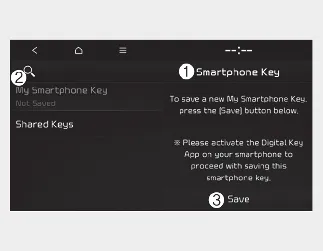
With the vehicle on, select 'Setup → Vehicle → Digital Key → Smartphone Key → My Smartphone Key' on the infotainment system.
-
Smartphone Key
-
My Smartphone Key
-
Save
-
-
After pressing 'Digital Key Settings → Register' in the Kia Access app, place the back side of the smart phone on the in-vehicle authentication pad.
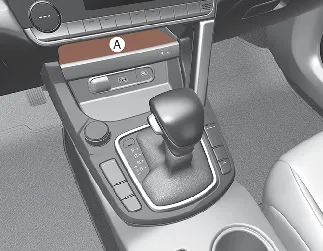
[A]: Charging pad
-
If the device supports additional vehicle services, the Kia Seltos Digital Key may also be registered wirelessly.
-
-
Select the 'Save' menu on the instrument cluster or on the infotainment system screen. The saving process will begin automatically.
-
When the digital key smart phone is saved successfully, a confirmation message will appear on the instrument cluster or infotainment system screen.
-
Remove the smart phone from the pad and complete the remaining steps by following the instructions shown on the smart phone screen.

NOTICE
-
The infotainment system may change after software updates. For the latest menu layout and detailed operation, refer to the user's manual provided in the Kia Seltos infotainment system and the quick reference guide.
-
Vehicle
When a digital key smart phone is already saved in the Kia Seltos, the 'Save' menu is disabled. If you want to save a digital key again, delete the existing digital key first, and then repeat the registration procedure.
-
Smart Phone
The digital key cannot be saved again while the vehicle's digital key remains stored in the owner's smart phone. Delete the digital key from the Kia Access app before attempting to save it again.
-
During the Kia Seltos digital key saving process, registration will be canceled if any of the following occurs:
-
The smart phone is removed from the in-vehicle authentication pad or wireless charging pad.
-
The infotainment system screen or instrument cluster screen is changed.
-
The vehicle is turned off.
-
The gear is shifted.
-
No smart key is detected inside the vehicle, in which case the saving process will not begin.
-
How to Use the Digital Key 2 Touch (Smart Phone)
Smart Phone Touch Control
The driver can lock and unlock the Kia Seltos doors by touching the registered smart phone to the door handle authentication pad, without opening the Kia Access app. The vehicle can also be started by placing the registered smart phone on the in-vehicle authentication pad, also known as the wireless charging pad.
This function is designed to make daily access easier, especially when the smart phone is already registered as a Kia Seltos Digital Key 2 Touch device.
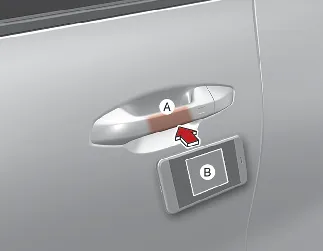
[A]: Door handle authentication pad
[B]: Near Field Communication (NFC) antenna on the back side of the smart phone. The antenna position may differ depending on the smart phone model.
Locking/Unlocking the doors
-
If you touch the smart phone NFC antenna to the driver's or passenger's door handle authentication pad for more than 2 seconds, the door will lock or unlock.
-
If the 2 Press Unlock function is set, only the driver's door will unlock when the smart phone is touched to the driver's door handle. Touch the smart phone to the handle again within 4 seconds to unlock all doors.
-
After the doors are unlocked, they will automatically re-lock after 30 seconds unless a door is opened.
-
If the Kia Seltos smart phone digital key does not operate, move the smart phone more than 4 in (10 cm) away from the door handle authentication pad, then try again.

NOTICE
You cannot lock your Kia Seltos using the smart phone NFC antenna if any of the following conditions occur:
-
The smart key is inside the vehicle.
-
The ENGINE START/STOP button is in the ACC or ON position.
-
You attempt to lock the door while more than one door, the hood, or the liftgate is open.
Starting your vehicle
To start the Kia Seltos with Digital Key 2 Touch, place your registered smart phone on the in-vehicle authentication pad, which is also the wireless charging pad. Then depress the brake pedal and press the ENGINE START/STOP button.
-
Once the vehicle has started, you can remove the smart phone from the pad.
For more details, refer to the related Kia Seltos starting and Digital Key operating instructions.

WARNING
Your Kia Seltos can be started when the registered smart phone is placed on the in-vehicle authentication pad or wireless charging pad. Do not leave unsupervised children or people who do not understand the system inside the vehicle, as this could result in serious injury or death. Always keep the registered smart phone with you when leaving the vehicle to help prevent unauthorized use or theft.

NOTICE
The operation time of Digital Key 2 Touch for a shared user may be longer during the first use.
Hold your Digital Key 2 Touch smart phone near the authentication pad on the outside door handle until the Kia Seltos door lock or unlock function operates.
If the inner authentication pad is used for the first time, the first vehicle start function may not operate immediately. Follow the smart phone and vehicle screen guidance, then try the procedure again if necessary.
How to delete Digital Key (Smart Phone)
To delete a Digital Key smart phone from the Kia Seltos, turn the vehicle on with the smart key and make sure the smart key remains inside the vehicle during the entire deleting process.
This procedure is useful when the owner's smart phone has been replaced, when access needs to be removed, or when you want to register a new Digital Key 2 Touch device.
-
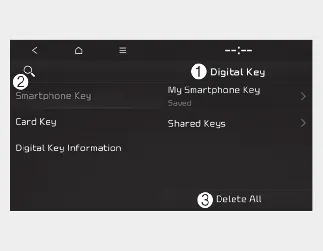
Delete All Digital Key (Smart Phone)
-
Digital Key
-
Smartphone Key
-
Delete All
With the Kia Seltos turned on, select 'Setup → Vehicle → Digital Key → Smartphone Key → Delete All' on the infotainment system.
-
The owner's key and the shared user's key will be deleted from the vehicle.
-
If no digital key is registered, this menu cannot be selected.
-
-
Delete My Smartphone Key
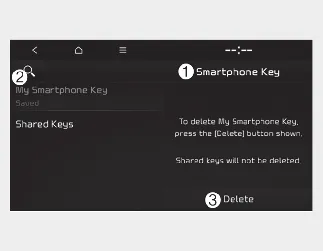
-
Smartphone Key
-
My Smartphone Key
-
Delete
If the owner's smart phone has been changed, a new smart phone can be registered after deleting only the previous Kia Seltos Digital Key 2 Touch smart phone.
With the vehicle on, select 'Setup → Vehicle → Digital Key → Smartphone Key → My Smartphone Key → Delete' on the infotainment system.
-
If a shared key is registered in the Kia Seltos, the shared key is not deleted by this procedure.
-
After deleting 'My Smartphone Key', a new smart phone can be registered as the owner's Digital Key.
-

NOTICE
-
If the digital key smart phone is deleted from the Kia Seltos, the digital key saved in the smart phone is also deleted.
-
If the digital key smart phone is deleted from the smart phone, the digital key saved in the vehicle is also deleted.
-
The infotainment system does not provide a separate function for deleting only a shared user's key.
-
The digital key smart phone is not deleted simply by removing the Kia Access app from the smart phone.
-
The digital key can be activated or deactivated through the Kia Access app or through the supported smart phone manufacturer's digital key service.

NOTICE
The infotainment system may change after software updates. For the latest menu names, screen layout, and operation details, refer to the user's manual provided in the Kia Seltos infotainment system and the quick reference guide.


Other information:
Kia Seltos SP2 (2021-2026) Owner's Manual: Smart key
Type A Type B With the Kia Seltos smart key, you can lock or unlock the doors and start the engine without inserting a traditional key. This convenient system allows everyday access to the vehicle while keeping the key in your pocket, bag, or hand. The buttons on the smart key provide functions similar to the folding key, including door locking, door unlocking, and other remote operations depending on vehicle equipment.Kia Seltos SP2 (2021-2026) Owner's Manual: Folding key immobilizer system
Your Kia Seltos may be equipped with an electronic engine immobilizer system designed to help reduce the risk of unauthorized vehicle use. The immobilizer system consists of a small transponder built into the ignition key and electronic control components installed inside the vehicle. When you insert the ignition key into the ignition switch and turn it to the ON position, the Kia Seltos immobilizer system checks the key and verifies whether it is valid for the vehicle.